
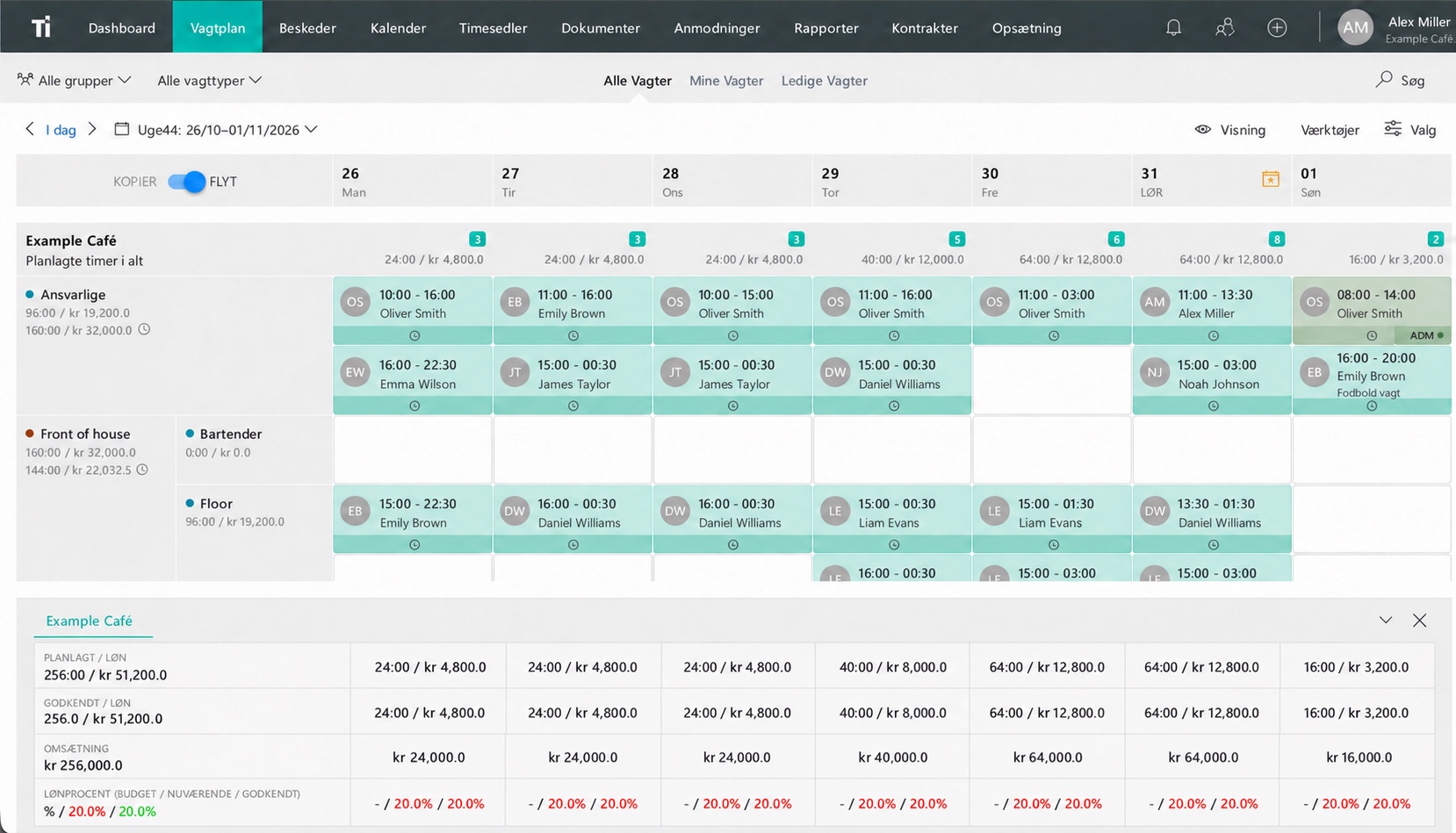
Download and fill in the Excel schedule
The Excel workbook has seven weekdays, space for seven employees or roles, and notes. Enter your own dates and shifts. Make extra copies for a larger team. The file is blank and contains no macros.
Start with the date range, workplace and person responsible for the schedule. Add employee names or roles, then write the start and finish time for each planned shift.
Use notes for details an employee needs, such as a different location or an opening responsibility. Agree how you show planned breaks and explain any abbreviations.
Use the printable schedule
For paper planning, open the printable weekly schedule in a new tab and print it in landscape orientation. You can also download the printable version to keep a local copy.
| Day | Employee | Role | Start–finish | Note |
|---|---|---|---|---|
| Monday | Example name | Opening | 08:00–16:00 | Break handled separately |
Check the busiest periods by role. A filled cell tells you who is scheduled; you still need to check that the people on that shift can cover the work.
Keep one version for the whole team
Choose where employees will find the current schedule and who can change it. When a new version is published, tell the team which one it replaces.
A date in the filename helps you keep a history. Employees also need to know what to do when an old screenshot differs from the current file. Agree one place to check and one person to contact.
Write statuses and notes in words rather than relying on color alone. The schedule should remain understandable on a phone and on a black-and-white printout.
Keep planned shifts and actual hours separate
Use the schedule to plan future work. Record the hours employees actually work in a separate timesheet, including any changes to start times, finish times and breaks.
If you add calculations to your own spreadsheet, test day shifts, overnight shifts and your break arrangements before using the results. Protect formula cells from accidental changes.
Our Excel timesheet template calculates recorded hours and includes an explicit end-day field for overnight work. Read the time tracking guide for the routine behind those entries.
Move on when updating the file becomes the work
A spreadsheet can serve a stable team well. Review the process when you spend too much time resending files, handling changes in separate messages or checking who is coming in.
Try your weekly schedule in TitanPlan
Use your existing week to try TitanPlan staff scheduling. Ask employees to find their next shift, request a change and check the updated plan. Our guide to choosing scheduling software explains what else to test.
You can keep the roles and shift patterns you have already worked out in the template. They give you a useful starting point for the trial.
Questions and answers
Is the download an Excel file?
Yes. The Excel download is a real .xlsx workbook. A separate HTML version is available for printing. Both are free and require no sign-up.
Does the schedule calculate actual working hours?
The schedule is for planned shifts. Use the separate timesheet template to record and calculate actual working hours.
When should we consider scheduling software?
When sharing changes, maintaining versions or checking coverage takes too much time. Try the same working week in a system and compare the tasks your team needs to complete.